
Messaging Setup
Set up the AI's replies — what to write
Brief the AI like a new employee — prices, scenarios, and customer types — then turn on follow-ups, texts, and calls.
The AI answers with what you write in one window. This guide walks through it tab by tab — what to write for your Yelp, Thumbtack, or Google LSA business, with examples you can adapt.
Getting there: open Businesses, find your business card, and click “All Settings”. If you’ve run the Quick & Easy Setup wizard, some of this is already filled in — this window is where you refine it.
Step 1 — Brief the AI like a new employee
On the Messaging tab, the field “How to Reply to Customers (Instruction for AI)” is the heart of the whole setup. Write it the way you’d train a person answering your leads: what to say first, what to ask, and what tone to keep. You can type variables like {lead_name} or {company_name} right into the text — the AI fills in the real values for each conversation.
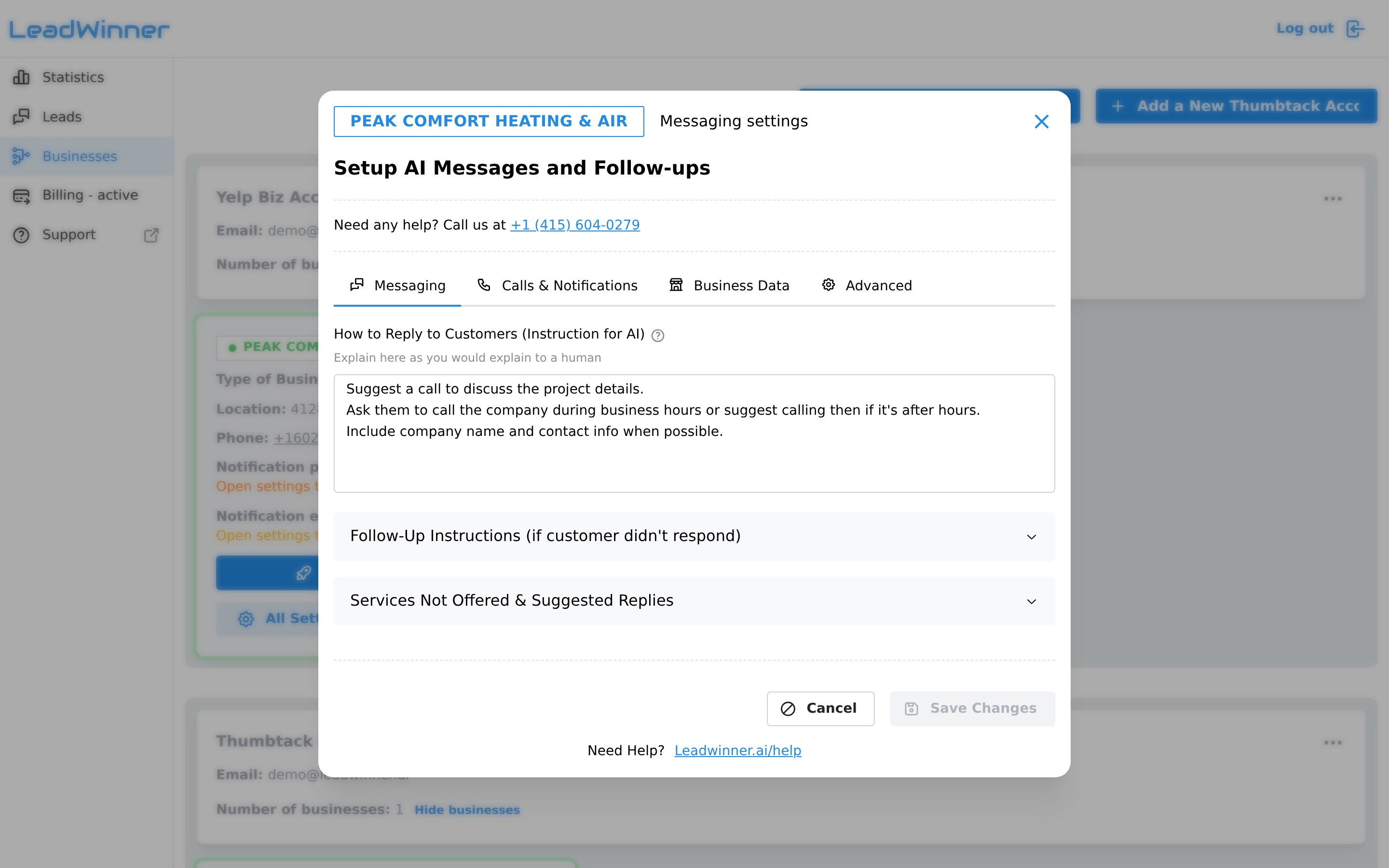
A solid instruction usually covers:
- The opener and the goal. “Thank the customer for reaching out, and ask what the job is, where, and how soon they need it. The goal is to book an on-site estimate.”
- Your prices. “A standard two-bedroom deep clean is $220. Move-out cleans start at $350. For anything unusual, say we’ll confirm the exact price after a quick walkthrough.”
- Different scenarios. “If it’s an emergency — flooding, no heat, a burst pipe — say we can usually come out the same day, and ask for the address right away.”
- Different types of customers. “For landlords and property managers, mention that we handle multiple properties and can invoice monthly.”
- Common situations. “If the customer asks for a discount, offer $25 off the first visit — nothing beyond that.”
One rule per line beats one long paragraph. And you don’t need to cover everything on day one — start with the opener and your prices, then refine after you read a few real conversations.
Step 2 — Say what you don’t do
Still on the Messaging tab, open “Services Not Offered & Suggested Replies”: list the jobs you don’t take (e.g., “commercial work, appliance repair”) and what the AI should answer instead. A ready-made polite template is one click away. This is the cheapest way to stop wrong-fit requests from eating your time.
Step 3 — Revive quiet customers with follow-ups
The “Follow-Up Instructions (if customer didn’t respond)” section holds up to 10 automatic nudges. Each one is a wait time plus an instruction for the AI — for example, wait 2 hours, then: “Ask if they’ve seen our reply, and mention we have an opening this week.” Follow-ups stop as soon as the customer answers. Full behavior rules: Follow-ups and reply timing.
Step 4 — Texts, calls, and notifications
The Calls & Notifications tab covers how we reach you and how the AI reaches the customer:
- Your notifications — the phone number and email where we tell you about new leads and replies, each with its own consent checkbox.
- Texting the customer (SMS) — the AI texts the lead once from a dedicated number, and the conversation can then continue over SMS between you and the customer. Available for Yelp and Thumbtack businesses; Google LSA already forwards every reply to the customer’s phone or email on its own. Setup: Text messaging with customers.
- Auto-calls (2-Way Auto-Dial) — for a promising lead, we call you first, then connect the customer. Available for all sources; on Yelp the call starts once the customer shares their phone number. Setup: Auto-calls.
Step 5 — Give the AI its facts
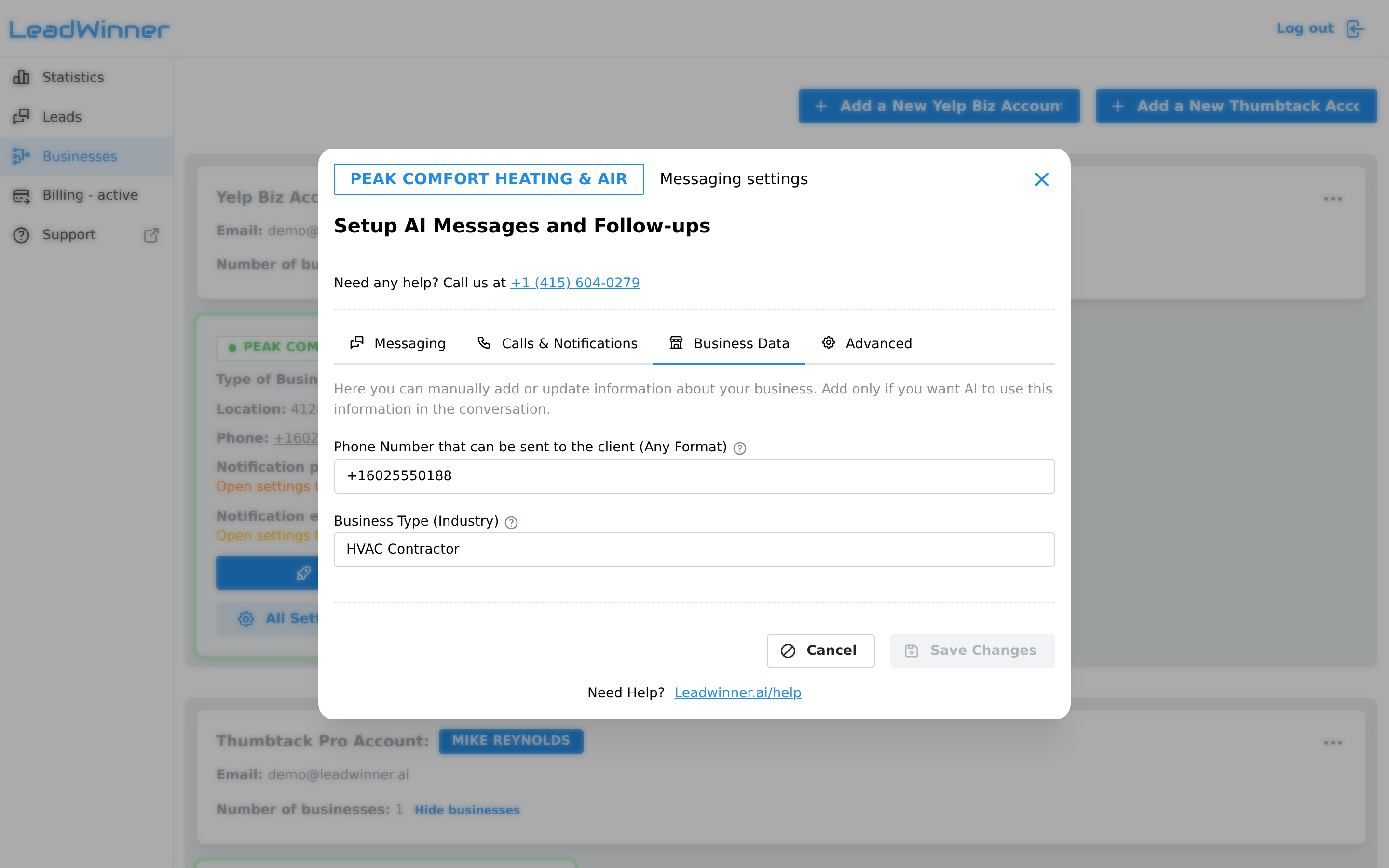
On the Business Data tab, fill in only what you want the AI to use in conversations:
- “Phone Number that can be sent to the client” — add it when you want customers moved to the phone quickly; leave it empty to keep conversations in chat.
- “Business Type (Industry)” — e.g., plumbing, house cleaning, landscaping. Helps the AI speak your trade’s language.
- “Business Address” and “Business Hours” — fill them in if customers come to your location or ask when you can come out. For Yelp businesses both come straight from your Yelp profile, so you won’t see the fields here — update them on Yelp instead.
Step 6 — Tune the rules (Advanced)
Sensible defaults are already in place — change these only when you have a reason:
- “Limit Outgoing AI Responses Per Lead (excluding follow-ups)” — how many conversation replies the AI may send per lead, from 1 up to 50. Default: 1 — the AI wins the first-response race and hands the conversation to you. Raise it when you want the AI to keep qualifying the lead before you step in. Details: How the AI responder works.
- “Notify me via SMS / Email when limit is reached” — your cue to take over once the AI steps aside.
- “Pause bot after manual response” — once you reply to a lead yourself, the AI stays out of that conversation. Default: indefinitely — after your first manual reply, the conversation is yours. Shorten it if you only drop in for a quick note and want the AI to resume.
- “Additional instructions for AI” — a free-text field for anything that didn’t fit Step 1: seasonal notes, service-area limits, or when the AI should stop responding. A fill-in template is provided.
- External Data Sources — let the AI read a Google Sheet (price lists, FAQs) or a Google Calendar (your availability), both read-only. Use them when prices or availability change too often to keep in the instructions.
- Schedule & Timing — Non-Reply Hours (when the AI must stay silent) and an optional reply delay. Field by field: Follow-ups and reply timing.
- AI model — the model that writes your replies. Most businesses can leave the default.
Try it before you go live
Click “Test AI” at the bottom of the settings window to simulate a lead and watch the AI answer with your instructions — no real customer involved. It uses your current edits even before you save — adjust, test, then click “Save Changes”.
If something’s not working
- A change didn’t stick. Make sure you clicked “Save Changes” — closing the window with unsaved edits prompts you to save or discard.
- The AI said something you didn’t expect. Its answers are built from Steps 1 and 2 plus the “Additional instructions for AI” field — reread those, then check with “Test AI”.
- No address or hours fields on a Yelp business. That’s expected: they come from your Yelp profile. Update them on Yelp.
Not sure how to phrase something? Contact support — we’ll help you write it.