
How the AI Responder Works
Pause auto-replies — per lead or per business
Need the AI to step back? Pause auto-replies for a single conversation or a whole business, take over manually, and turn everything back on anytime.
Sometimes you want the AI to step aside — for one conversation you’re handling personally, or for a whole business while you’re on vacation. Both are one click.
Pause a single lead
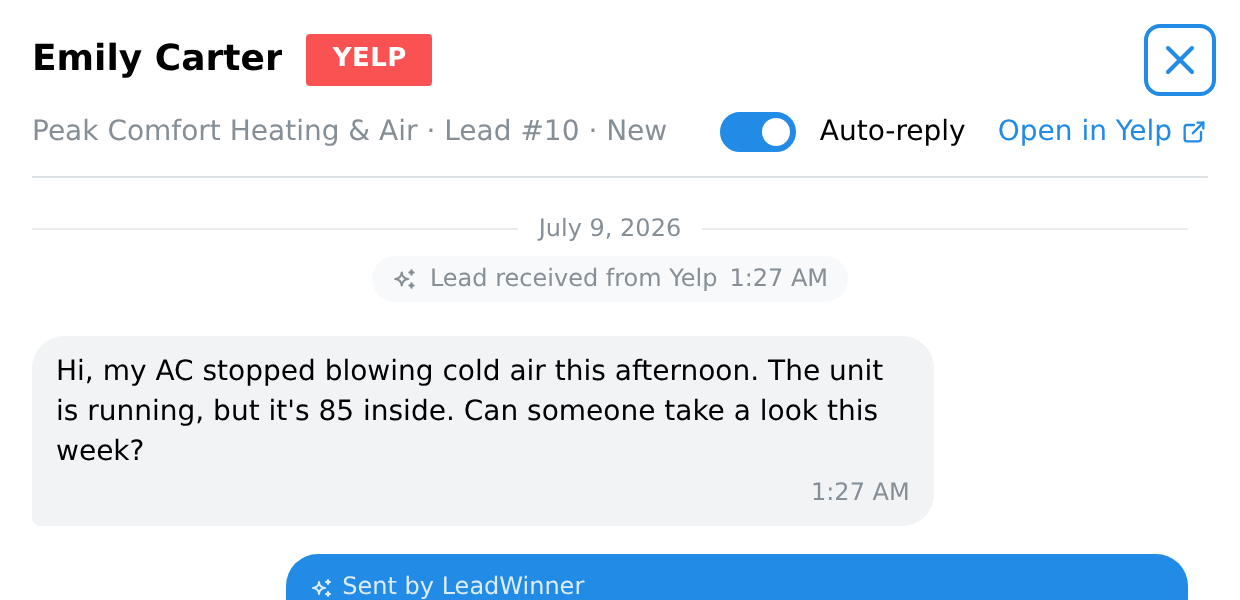
Every lead has an “Auto-reply” switch — on the lead card in the Leads list, and at the top of the opened lead. Turn it off and the AI stops responding to that customer, and any scheduled follow-ups for that lead stop too; other leads are unaffected. Flip it back on anytime.
Pause a whole business
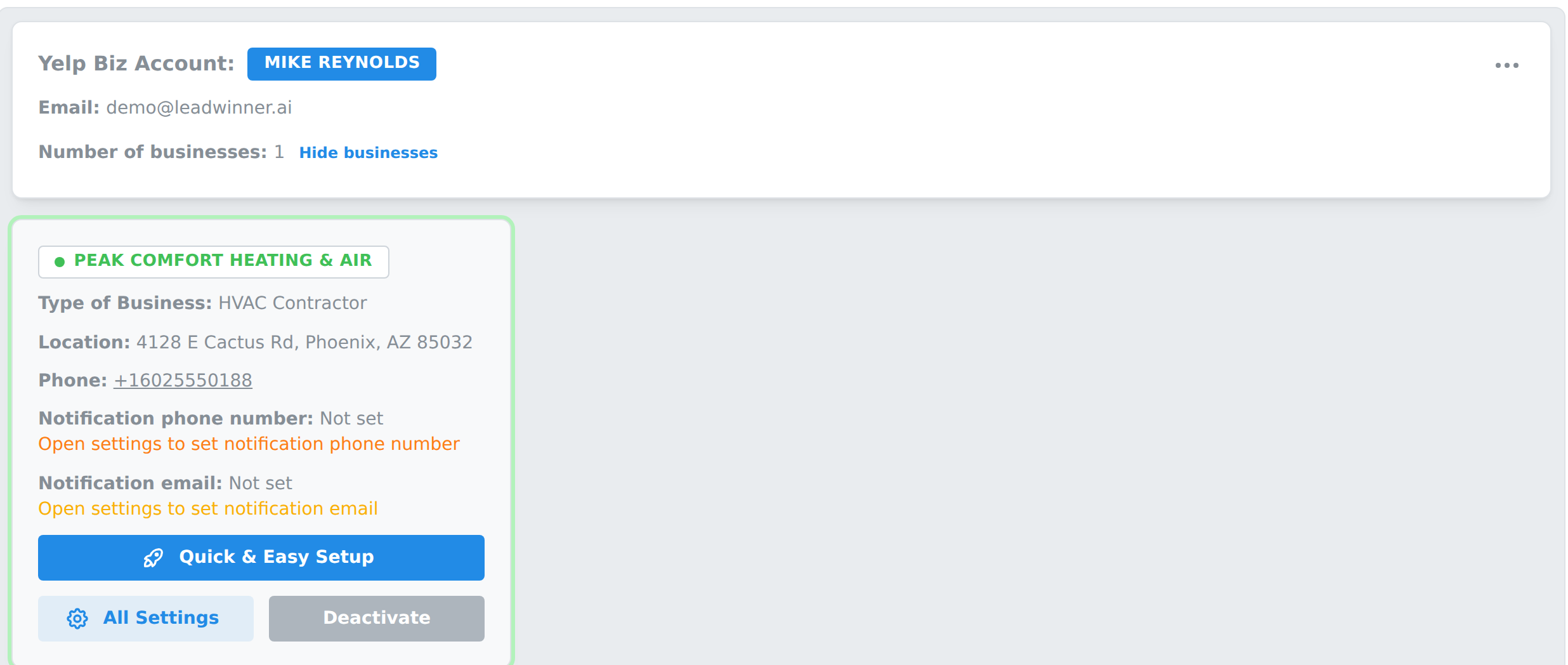
On the Businesses page, click “Deactivate” on the business card. The status dot turns gray (“Status: Disabled”), and the AI stops responding to all leads for that business. Click “Activate” to resume.
Automatic pauses (built in)
Beyond manual pauses, the AI steps back on its own in a few situations:
- After you reply manually. Once you send a manual response — on the platform’s own site or from LeadWinner — the bot pauses for that lead. You control the duration in All Settings → Advanced → Messaging Rules → “Pause bot after manual response”, from no pause at all up to indefinitely; new accounts start with a long pause, so set it to what you want once. (Replying by text through the SMS relay doesn’t trigger this pause.) The AI also never talks over you: if your message is the latest in the conversation, it waits for the customer’s next message.
- During Non-Reply Hours. If you’ve set quiet hours, nothing goes out during them. See How the AI responder works.
- When the response limit is reached. By default the AI sends one message per lead and then hands the conversation to you. See How the AI responder works.
- When a customer opts out of texts. If a customer replies STOP to a text, automated texting to that customer stops. See Text messaging with customers.
Which pause should I use?
- Handling one hot lead yourself → flip that lead’s Auto-reply off (or just reply manually and let the built-in pause cover you).
- Fully booked this month → Deactivate the business.
- Never message customers at night → set Non-Reply Hours once and forget it.
Questions about pausing? Contact support — tell us what you’re trying to step away from, and we’ll point you to the right switch.
Common questions
- Can I turn off auto-replies for one business or platform?
- Yes. On the Businesses page, click Deactivate on that business's card — the AI stops responding to all leads for that business, while your other businesses keep answering. Each platform (Yelp, Thumbtack, or Google LSA) connects as its own source with its own businesses, so deactivating the businesses under one source turns off auto-replies for that platform only. Click Activate to resume anytime.
- Can I pause the AI for a single lead?
- Yes. Every lead has an Auto-reply switch — on the lead card in the Leads list and at the top of the opened lead. Turn it off and the AI stops responding to that customer, and any scheduled follow-ups for that lead stop too; other leads are unaffected.
- Does the AI pause when I reply to a customer myself?
- Yes. Once you send a manual response, the bot pauses for that lead — you control the duration in All Settings → Advanced → Messaging Rules. The AI also never talks over you: if your message is the latest in the conversation, it waits for the customer's next message.